Showing posts with label Managed Metadata. Show all posts

Leveraging SharePoint's OOB Taxonomy Picker

Thursday, June 30, 2016

11

In this post I'll go over how to instantiate the OOB SharePoint Taxonomy Picker using JavaScript.
Sometimes jslink just can't do the job, and we need to build a completely custom form with JavaScript and the REST APIs.  It's not too bad, but Managed Metadata fields are definitely a pain to handle.

I'm not a huge fan of the OOB Taxonomy Picker UI.  If you have the time and resources, it's worth considering rolling your own taxonomy control.  But for efficiency or consistency's sake, we can reuse the OOB picker with just a little bit of code.

Credit for the core of this code goes to this blog post.  There are a few other posts out on the interwebs with similar.  However, I could not get any to consistently work.  Many didn't load dependencies properly, or relied on resources which might not be loaded depending on what version of SharePoint and what type of page you're on.

So, I've bundled everything into an easy to consume wrapper, and made it as robust as possible by explicitly loading every required resource.  This has been tested on an OOB Publishing Page in both O365 and SP 2013 on prem.  It requires jQuery to be loaded.

Helper Functions

First, drop the code below anywhere on the page.  It looks hairy, but is actually fairly straight forward.

When called, it inserts a DIV on to the page to hold the taxonomy control.  It also adds a hidden textbox to hold the GUIDs of the selected terms.

Next, it uses JSOM to retrieve the ID of the current site's default Term Store.  Finally, it wires up some properties on the textbox, and registers an event which will cause SharePoint to transform the textbox into a taxonomy picker when the page loads.

var taxonomyPickerHelper = taxonomyPickerHelper || {
  initPicker: function (containerId, termSetId) {
    // Create empty picker template and hidden input field
    var pickerContainerId = containerId + '_picker';
    var pickerInputId = containerId + '_input';

    var html = '<input name="' + pickerInputId + '" type="hidden" id="';
    html += pickerInputId + '" />';
    html += '<div id="' + pickerContainerId;
    html += '" class="ms-taxonomy ms-taxonomy-height ms-taxonomy-width"></div>';

    jQuery('#' + containerId).html(html);

    // Get Termstore ID and init control
    taxonomyPickerHelper.getTermStoreId().then(function (sspId) {
      taxonomyPickerHelper.initPickerControl(sspId, termSetId, 
        pickerContainerId, pickerInputId);
    });
  },

  getSelectedValue: function (containerId) {
    return jQuery('#' + containerId + '_input input').val();
  },

  getTermStoreId: function () {
    var deferred = jQuery.Deferred();

    var context = new SP.ClientContext.get_current();
    var session = SP.Taxonomy.TaxonomySession.getTaxonomySession(context);
    var termStore = session.getDefaultSiteCollectionTermStore();

    context.load(session);
    context.load(termStore);

    context.executeQueryAsync(
      function () {
        var sspId = termStore.get_id().toString();
        deferred.resolve(sspId);
      },
       function () {
         deferred.reject("Unable to access Managed Metadata Service");
       }
     );

    return deferred.promise();
  },

  initPickerControl: function (sspId, termSetId, 
                               pickerContainerId, pickerInputId) {
    var tagUI = document.getElementById(pickerContainerId);
    if (tagUI) {
      tagUI['InputFieldId'] = pickerInputId;
      tagUI['SspId'] = sspId;
      tagUI['TermSetId'] = termSetId;
      tagUI['AnchorId'] = '00000000-0000-0000-0000-000000000000';
      tagUI['IsMulti'] = true;
      tagUI['AllowFillIn'] = false;
      tagUI['IsSpanTermSets'] = false;
      tagUI['IsSpanTermStores'] = false;
      tagUI['IsIgnoreFormatting'] = false;
      tagUI['IsIncludeDeprecated'] = false;
      tagUI['IsIncludeUnavailable'] = false;
      tagUI['IsIncludeTermSetName'] = false;
      tagUI['IsAddTerms'] = false;
      tagUI['IsIncludePathData'] = false;
      tagUI['IsUseCommaAsDelimiter'] = false;
      tagUI['Disable'] = false;
      tagUI['ExcludeKeyword'] = false;
      tagUI['JavascriptOnValidation'] = "";
      tagUI['DisplayPickerButton'] = true;
      tagUI['Lcid'] = 1033;
      tagUI['FieldName'] = '';
      tagUI['FieldId'] = '00000000-0000-0000-0000-000000000000';
      tagUI['WebServiceUrl'] = _spPageContextInfo.webServerRelativeUrl + '\u002f_vti_bin\u002fTaxonomyInternalService.json';

      SP.SOD.executeFunc('ScriptForWebTaggingUI.js', 
        'Microsoft.SharePoint.Taxonomy.ScriptForWebTaggingUI.taggingLoad',
        function () {
          Microsoft.SharePoint.Taxonomy.ScriptForWebTaggingUI.resetEventsRegistered();
        }
      );

      SP.SOD.executeFunc('ScriptForWebTaggingUI.js', 
        'Microsoft.SharePoint.Taxonomy.ScriptForWebTaggingUI.onLoad',
        function () {
          Microsoft.SharePoint.Taxonomy.ScriptForWebTaggingUI.onLoad(pickerContainerId);
        });
    }
  }
};

CSS

Next, include this CSS file to style the taxonomy picker:

<link rel="stylesheet" type="text/css" 
      href="_layouts/15/1033/styles/WebTaggingUI.css" />

Container DIV

Add a DIV to hold the taxonomy picker:

<div id="my-taxonomypicker">
</div>

Load Dependencies and Initialize

Finally, add the JavaScript below to initialize the picker.  This bad boy makes sure all the necessary dependencies are loaded, then initializes the picker with taxonomyPickerHelper.initPicker.  That takes 2 arguments, the ID of the container to place the picker, and the GUID of the termset to load.

Note: You must plug in the GUID to your termset on line 21

Note 2: sp.rte.js is a required dependency on O365, but does not exist in 2013 on prem.  For O365, be sure to uncomment lines 13, 14, 17, and 24.

jQuery(document).ready(function () {
  SP.SOD.loadMultiple(['sp.js'], function () {
    SP.SOD.registerSod('sp.taxonomy.js', 
        SP.Utilities.Utility.getLayoutsPageUrl('sp.taxonomy.js'));
    SP.SOD.registerSod('scriptforwebtaggingui.js', 
        SP.Utilities.Utility.getLayoutsPageUrl('scriptforwebtaggingui.js'));
    SP.SOD.registerSod('sp.ui.rte.js', 
        SP.Utilities.Utility.getLayoutsPageUrl('sp.ui.rte.js'));
    SP.SOD.registerSod('scriptresources.resx', 
        SP.Utilities.Utility.getLayoutsPageUrl('ScriptResx.ashx?culture=en-us&name=ScriptResources'));

    // UNCOMMENT THIS FOR O365
    // SP.SOD.registerSod('ms.rte.js', 
    //     SP.Utilities.Utility.getLayoutsPageUrl('ms.rte.js'));

    // UNCOMMENT THIS FOR O365
    // SP.SOD.loadMultiple(['ms.rte.js'], function () {
      SP.SOD.loadMultiple(['sp.taxonomy.js', 'sp.ui.rte.js', 
                           'scriptresources.resx'], function () {

        taxonomyPickerHelper.initPicker('my-taxonomypicker', '<TERM SET GUID>');

      });
    // });
  });
});

Wrap Up

To get the selected terms, call:

taxonomyPickerHelper.getSelectedValue('my-taxonomypicker')

The full sample code is available for download here.


Taxonomy Columns & SharePoint 2013 List REST API

Monday, May 12, 2014

14

I ran into a strange issue today when using the SharePoint 2013 REST API for Lists with Managed Metadata columns.  For a multi-select taxonomy column, the List service returns Label text as expected.  But if you change that same column to single-select, suddenly an ID is returned in the Label field!

For instance, consider an Orders list with a Product multi-select taxonomy field.  I run the following REST query to dump all the list items:

  http://sharepointificate/_api/web/Lists/GetByTitle('Orders')/Items

All is good and the Product label text is returned:

Now if I just change Product to single-select and run that same query, the friendly label is gone!  This has to be a bug.  Yes, YOU, Microsoft.  I'm talking to you!


Luckily, there is a workaround. The Taxonomy label is correctly returned when we use a CAML query to retrieve the list items.  Erik C. Jordan's answer on this MSDN thread reveals a way to use CAML against the REST API.  This guy must be some kind of SP savant, because I can find absolutely no other documentation on this method—but it works: 

/GetByTitle('Orders')/GetItems(query=@v1)?@v1={'ViewXml':'<View><Query></Query></View>'}

A couple things to note:

  1. GetItems is a POST operation.  The query above will not work when run from your browser's address bar, which performs a GET.  You need a tool like Fiddler to send a POST message to the REST endpoint.  More likely, you'll be doing a jQuery ajax call like the example below.
  2. An X-RequestDigest message header is required for POST operations against the REST API.  Its value differs between environments and apps.  If this header is missing or incorrect, the server will return a 403 Forbidden error.  When executing within a SharePoint-hosted or on-premise context, it should be available on the page itself, and you can grab it with $("#__REQUESTDIGEST").val().  For other contexts, you'll have to retrieve the value like this MSDN article describes.

The complete Ajax call:

$.ajax({
    url: "http://sharepointificate/_api/web/Lists/GetByTitle('Orders')/GetItems(query=@v1)?@v1={'ViewXml':'<View><Query></Query></View>'}",

    type: "POST",

    headers: {
        "Accept": "application/json;odata=verbose",
        "X-RequestDigest": $("#__REQUESTDIGEST").val()
    },

    success: function (data, textStatus, jqXHR) {
        console.log(data.d.results[0].Product.Label);
    },

    error: function (jqXHR, textStatus, errorThrown) {
        console.dir(jqXHR);
    }
});


Setting Managed Metadata Column Default Value

Monday, April 28, 2014

3

In this post I'll go over programmatically setting the default value on a taxonomy column.  This turns out to be a bit trickier than one would expect.

TaxonomyField.DefaultValue expects a string in the format <WssId>;#<TermLabel>|<TermGuid>. TermLabel and TermGuild are easy to find, but what about WssId?

If you already know about the TaxonomyHiddenList and WssId, go ahead and skip to the next paragraph. Every site that works with Managed Metadata has a hidden list called, aptly, TaxonomyHiddenList. This serves as a local cache, and all term references on the site actually point to items in this hidden list. WssID refers to a term’s ID in this list. It is initially empty, and terms are added the first time they’re actually used on the site.

In most situations, we do not have to worry about the WssID. When adding a list item with a taxonomy field, setting WssID to -1 tells SharePoint to resolve the WssID if the term exists in TaxonomyHiddenList, or otherwise add it.

Unfortunately, this does not work when setting a field’s default value. The -1 WssId will simply be saved as the default value. Note that setting DefaultValue with an invalid WssID will not cause an exception, and the default value still shows up in the column settings UI. However, when you actually create a new list item, the default value will not be set.

We can try to retrieve WssId from TaxonomyHiddenList, but if the term hasn’t been used on the site before, there will be no WssID. SharePoint does not expose any method to explicitly add a term to the hidden list.

The solution is to create a dummy list item, and call SetFieldValue with the term. You do NOT have to actually save the dummy item by calling Update() on it. Simply calling SetFieldValue triggers a SharePoint internal “TouchAllTaxonomyColumns” method on the field, which populates the hidden list if needed.

Finally, GetValidatedString returns the complete string that DefaultValue expects.

$web = Get-SPWeb -Identity http://sharepointificate.com

# Get Taxonomy column

$list = $web.Lists["Posts"]
$taxField = $list.Fields["Label"] -as 
              [Microsoft.SharePoint.Taxonomy.TaxonomyField];

# Get term

$termStoreId = taxField.SspId;
$termSession = Get-SPTaxonomySession -Site $list.ParentWeb.Site;
$termStore =  $termSession.TermStores[$termStoreId];
$termSet = $termStore.GetTermSet( $taxField.TermSetId );
$terms = $termSet.GetTerms( "SharePoint", $false );
$term = $terms[0];

# Use the term in a dummy item to ensure that is added to the site's
# HiddenTaxonomyList and has a WssId. Do NOT call Update() on
# the item-- we don't actually want to add it.  Simply calling SetFieldValue
# will force SP to initialize the hidden list entry.

$newItem = $list.Items.Add();
$taxField.SetFieldValue( $newItem, $term );

# Retrieve term string from dummy item, 
# in form of <wssid>;#<termlabel>|<termguid>

$value = $taxField.GetValidatedString( $newItem[$taxField.Id] );

# Set default value and save

$taxField.DefaultValue = $value;
$taxField.Update(); 


Deploying Multi-select Managed Metadata Fields

Saturday, April 21, 2012

10

Taxonomy site columns can be provisioned just like other columns through a Feature. There are already excellent tutorials out there on how to deploy site columns via Feature--for instance, this post on Fabian William's blog.  However, there are some pitfalls to getting the Elements file right for Managed Metadata fields (MM for short hereafter).  This post covers:

  • How to provision a MM field
  • TargetTemplate property's function and it's effect on TaxonomyFieldControl
  • How to enable multi-select

Hidden Note Field 

Firstly, each MM field must be paired with a hidden Note field.  The MM field stores the value of the metadata term, while the associated Note field holds the term's taxonomy ID.  If you provision just the MM one, it'll show up on the site, but you'll probably run into this error once you try to put values in: Failed to get value of the “{0}” column from the “Managed Metadata” field type control. See details in log. Exception message: Invalid field name. {00000000-0000-0000-0000-000000000000}.

The example below deploys a new MM column called Keywords, and a Note column called KeywordsTaxHTField0.  The Note field can be named anything, but I use the TaxHTField0 suffix to be consistent with SharePoint's convention.

The MM field's TextField property references the Note field's ID. This is what links the two columns.

<Field ID="{AFFCC398-1B80-49B4-9367-5980C74AF556}"
            Type="Note"
            Name="KeywordsTaxHTField0"
            StaticName="KeywordsTaxHTField0"
            DisplayName="Keywords_0"
            ShowInViewForms="false"
            Hidden="true"
            CanToggleHidden="true"
            Group="Custom" />

<Field ID="{9D21CCB4-B815-483E-A1C1-9947A1514187}"
            Type="TaxonomyFieldType"
            Name="Keywords"
            StaticName="Keywords"
            DisplayName="Keywords"
            ShowField="Term1033"
            Required="false"
            Group="Custom">
   <Customization>
      <ArrayOfProperty>
         <Property>
            <Name>TextField</Name>
            <Value xmlns:q6="http://www.w3.org/2001/XMLSchema"
                         p4:type="q6:string"
                         xmlns:p4="http://www.w3.org/2001/XMLSchema-instance">
               AFFCC398-1B80-49B4-9367-5980C74AF556
            </Value>
          </Property>
      </ArrayOfProperty>
   </Customization>
</Field>


TargetTemplate and TaxonomyFieldControl Rendering

Sometimes, in my twisted dreams, SharePoint comes to me, a goddess with eyes afire, whose alien desires and inscrutable whims lay waste to entire farms.  She passes judgement atop a giant hourglass, a literal timer job run on the raging souls of a thousand broken developers.  A simpler metaphor might be a box of chocolates.  The point is, some crazy, existential sh*t happens on SharePoint.

Say you add a MM field to an Enterprise Wiki and put down a TaxonomyFieldControl on the page to display the new field, right under the OOB Wiki Categories control with this markup:

<Taxonomy:TaxonomyFieldControl
    FieldName="Wiki_x0020_Page_x0020_Categories"
    EmptyValueDescriptionForTargetTemplate="<%$Resources:cms,enterwiki_nocategories_assigned%>"
    DisableInputFieldLabel="true"
    runat="server" />

<Taxonomy:TaxonomyFieldControl
    FieldName="Keywords"
    EmptyValueDescriptionForTargetTemplate="No keywords tagged"
    DisableInputFieldLabel="true"
    runat="server" />

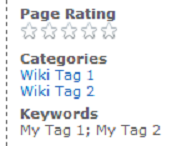
The declarations are identical except for the fieldname and message to display when the field is empty.  The two TaxonomyFieldControls render completely differently:


OOB wiki categories display line by line, each linked to a page listing all articles tagged with that category.  The second taxonomy control is a comma-separated text list.  It also refuses to display the EmptyValueDescription when no tags are selected.  Scritch... scritch...


Much blood, tears and other fluids were unwillingly shed--unspeakable rituals performed--in search of an answer.  It turns out, to get the TaxonomyFieldControl to render like Wiki Categories, the Managed Metadata field it points to must have it's TargetTemplate property set.  TargetTemplate specifies the URL for the term hyperlinks.  For instance, TargetTemplate for Wiki Categories is /_layouts/Categories.aspx, a page which lists all articles tagged with the category.  You can point to that, or make a better looking custom page.  To set TargetTemplate, include the following property in your MM field declaration:

<Property>
     <Name>TargetTemplate</Name>
     <Value xmlns:q6="http://www.w3.org/2001/XMLSchema"
                  p4:type="q6:string"
                  xmlns:p4="http://www.w3.org/2001/XMLSchema-instance">
          /_layouts/Categories.aspx
     </Value>
</Property>


Allow Multiple Values 

To make a multi-select MM field, declare the field Type as TaxonomyFieldTypeMulti instead of TaxonomyFieldType, and set Mult to true.  You must also explicitly set Sortable to false; otherwise multi-select will not be enabled despite the Type and Mult properties!

The full example below provisions a multi-select MM field with TargetTemplate, along with the associated hidden Note field:

<Field ID="{AFFCC398-1B80-49B4-9367-5980C74AF556}"
           Type="Note"
           Name="KeywordsTaxHTField0"
           StaticName="KeywordsTaxHTField0"
           DisplayName="Keywords_0"
           ShowInViewForms="false"
           Hidden="true"
           CanToggleHidden="true"
           Group="Custom" />

<Field ID="{9D21CCB4-B815-483E-A1C1-9947A1514187}"
           Type="TaxonomyFieldTypeMulti"
           Name="Keywords"
           StaticName="Keywords"
           DisplayName="Keywords"
           ShowField="Term1033"
           Required="FALSE"
           Mult="TRUE"
           Sortable="FALSE"
           Group="Custom">
     <Customization>
          <ArrayOfProperty>
               <Property>
                   <Name>TextField</Name>
                    <Value xmlns:q6="http://www.w3.org/2001/XMLSchema"
                                 p4:type="q6:string"
                                 xmlns:p4="http://www.w3.org/2001/XMLSchema-instance">
                         AFFCC398-1B80-49B4-9367-5980C74AF556
                    </Value>
               </Property>
              <Property>
                  <Name>TargetTemplate</Name>
                  <Value xmlns:q6="http://www.w3.org/2001/XMLSchema"
                               p4:type="q6:string"
                               xmlns:p4="http://www.w3.org/2001/XMLSchema-instance">
                      /_layouts/Categories.aspx
                  </Value>
              </Property>
          </ArrayOfProperty>
     </Customization>
</Field>