Showing posts with label Search. Show all posts

Search Display Templates Made Easy w/ Knockout

Thursday, June 30, 2016

3

I first started using Knockout JS in display templates for a solution that required complex interactive search results.  But I found that Knockout made working with display templates SO much easier in general, it's now my go-to solution for building any custom template!

The inline JavaScript / HTML mashup syntax that display templates use turns the simplest requirements into a giant, unreadable mess of <!--#_ _#--> and _#= =#_ tags.

Incorporating Knockout enables us to:

  • Write clean markup with easy-to-read databinding
  • Open the door to more complex interactive solutions

Why Knockout JS, specifically?  Mostly because it's what I'm most familiar with.  I'm sure other frameworks like ReactJS or AngularJS could be use with similar benefits.  I like Knockout because it's trivially simple to set up and get started with.  For simple templates, the data-binding feature is all we'll need.  But having Knockout also opens the door to dependency-tracking, 2-way data binding, event handling, custom components, and other cool stuff down the road.

Include KnockoutJS

First, we need to include the KnockoutJS framework on the site.  It is a single, standalone JavaScript file which you can download from http://knockoutjs.com.

Upload it some where on SharePoint (eg Master Page Gallery or Site Assets), then add a reference to it in the Master Page:

<!--MS:<SharePoint:ScriptLink language="javascript" name="~SiteCollection/_catalogs/masterpage/js/knockout-3.4.0.js" OnDemand="false" runat="server" Localizable="false">-->
<!--ME:</SharePoint:ScriptLink>-->

Display Template Markup

Full code example is at the end of this article.  Here I'll break down the template and explain what each part does:

Pre-Render Javascript (lines 18-22)


This JavaScript in the special inline JavaScript/HTML syntax runs before the markup is rendered. Here, we simply save a reference to the current search result item, and generate a unique ID.

Markup (lines 24-33)


This is where the HTML markup and Knockout data-bindings for the current item are defined.  This markup will be emitted to the search results page.

Note on line 24 where we plug the unique container ID generated above into the markup with _=# containerId #=_.  This is the only place where we need to use the _#= =#_ syntax, as the ID has to be inserted before applying Knockout data-binding.

The rest is arbitrary HTML and Knockout bindings!  Go crazy!  For those unfamiliar with Knockout, $root refers to the root data model object that the template is bound to.  Here, we'll bind the template to the search result item, ctx.CurrentItem.  So, any property available on the item can be used in the template.  Remember that only Managed Properties that have been called out in ManagedPropertyMapping (line 8) are available.

Post Render - Apply Data-bindings (lines 35-40)


Finally, we register a Post Render callback method which executes after the template markup has been emitted.

We tell Knockout to apply the data-bindings by calling ko.applyBindings.  We pass it the search result item to map from ($root in the markup bindings), as well as the HTML element containing the template to bind to.


<html xmlns:mso="urn:schemas-microsoft-com:office:office" xmlns:msdt="uuid:C2F41010-65B3-11d1-A29F-00AA00C14882">
<head>
  <title>My Custom Search Result Item</title>

  <!--[if gte mso 9]><xml>
  <mso:CustomDocumentProperties>
  <mso:TemplateHidden msdt:dt="string">0</mso:TemplateHidden>
  <mso:ManagedPropertyMapping msdt:dt="string">'Title','Path','Author'</mso:ManagedPropertyMapping>
  <mso:MasterPageDescription msdt:dt="string"></mso:MasterPageDescription>
  <mso:ContentTypeId msdt:dt="string">0x0101002039C03B61C64EC4A04F5361F385106603</mso:ContentTypeId>
  <mso:TargetControlType msdt:dt="string">;#SearchResults;#</mso:TargetControlType>
  <mso:HtmlDesignAssociated msdt:dt="string">1</mso:HtmlDesignAssociated>
  </mso:CustomDocumentProperties>
  </xml><![endif]-->
</head>
<body>
  <div id="item">
    <!--#_
    var encodedId = $htmlEncode(ctx.ClientControl.get_nextUniqueId());
    var containerId = "MyCustomItem_" + encodedId;
    var currentItem = ctx.CurrentItem;
    _#-->

    <div id="_#=containerId=#_">
      <div>
        <span><b>Title:</b></span>
        <span data-bind="text: $root.Title"></span>
      </div>
      <div>
        <span><b>Path:</b></span>
        <span data-bind="text: $root.Path"></span>
      </div>
    </div>

    <!--#_
    AddPostRenderCallback(ctx, function()
    {
      ko.applyBindings(currentItem, document.getElementById(containerId));
    });
    _#-->
  </div>
</body>
</html>


SharePoint Search Box for Explore Experience

Thursday, June 30, 2016

1

This post will focus on some issues that make SharePoint's Search Box webpart clumsy when used in a Explore / Discovery scenario, and how to address them:

  • Retaining active refiners between searches
  • Clearing the search keyword
  • Building a custom client-side Search Box

Empty Keyword

By default, when you hit Enter on an empty Search Box, nothing happens.  Why would anyone search for empty string any way?  But, this actually comes up a lot in the Explore experience because users are likely to start with the refiners.  Consider this flow:

  1. Land on the Explore page
  2. I browse by refining on Location = Seattle and Subject = Expenses
  3. I search for the keyword "reports", but don't find anything of interest
  4. Now, I want to go back to #2 and browse the rest of Seattle/Expense items

Without the ability to search for the empty string (or a "clear" button), the only way to do #4 would be to reload the page and re-apply the Seattle/Expense filters.

Luckily, the Search Box webpart supports empty string search-- it's just disabled by default.  It is controlled by the AllowEmptySearch property, which AFAIK can not be managed from the UI.  To set this property, export your Search Box, and edit the .webpart file in a text editor:

Import it back to the page, and you are good to go!

Preserving Selected Refiners

A bigger problem is that when you search for a new keyword, all refiners are reset.  Consider this use case:

  1. Filter on Location = Seattle, Subject = Expenses
  2. Try a bunch of different keywords within those categories

Since the Search Box clears existing refinements on submit, I'd have to reapply Seattle/Expenses refiners after every new keyword.  So, this is not usable at all.

We can partially solve this by setting the MaintainQueryState property to True (False by default).  Again, this is not available from the UI.  You have to export and re-import the webpart:

This retains selected refiners between searches, but introduces a new problem.  It maintains ALL query state, including paging, which gives unexpected results in this specific scenario:

  1. Search for keyword A
  2. Go to next page of results.  The query state is now on page 2.
  3. Search for keyword B
  4. If keyword B has only one page of results, you will see NO results because the query state is still on page 2.  Worse, the paging controls aren't available because it thinks there are no results at all!

What we really want is to retain selected refiners, but start back at page 1.  I can not figure out any way to achieve this using the OOB Search Box webpart (would love to hear if anyone else has).  Which brings me to the more interesting part of this article...

Custom Javascript Search Box

The goal is to have a textbox that does the following on every submit:

  • Search for entered keyword
  • Retain selected refiners
  • Start at page 1
  • Accepts empty keyword (clear keyword)

This can easily be achieved with just Javascript and a Content Editor Webpart.  This custom JS approach also opens the door to other custom behaviors.  Go crazy.  The sky's the limit!

To be clear, the OOB Search Box comes with other goodies like query suggestions and scope selection.  However, those often are not needed on an Explore page.  I feel it's more important to perfect the basic filter/search use cases. 

You can drop the following markup into a Content Editor Webpart, which does the following:

  1. Create a text box (line 1)
  2. Attach an event handler (keyup) for the Enter key (line 5)
  3. Get a reference to the search DataProvider on the page (lines 8-9)
  4. Set query state's keyword to value from textbox, and paging to first page (lines 13-14)
  5. Trigger a query (line 16)
  6. If there's a Search Results or Content Search webpart on the page, it should automatically pick up the new results.

<input id="search-box" type="text" placeholder="Search..." />

<script type="text/javascript">
  jQuery(document).ready(function () {
    jQuery('#search-box').keyup(function (event) {
      if (event.keyCode == 13) { // Enter key
        if (Srch.ScriptApplicationManager) {
          var appManager = Srch.ScriptApplicationManager.get_current();
          var provider = appManager.queryGroups['Default'].dataProvider;

          var keyword = jQuery('#search-box').val();

          provider.get_currentQueryState().s = 0; // page = 0
          provider.get_currentQueryState().k = keyword; // new keyword

          provider.issueQuery(); // execute search
        }

        return false;
      }
    });
  });
</script>


SharePoint Search vs Explore Experience

Tuesday, June 28, 2016

0

I stare deep into the empty search box, and the cursor blinks back at me-- a mocking, existential question mark.  What the heck do I type in? Does it matter? Does anything matter? I iterate pseudo-random combinations of keywords, hoping to discover that one serendipitous, magical arrangement. Despair sets in.

The SharePoint Search experience (search results page) is often used as a one-size-fits-all solution, even when users really need Discovery.  Or both.  There are small, yet very important differences between the two.  More and more, I'm building portals with a separate search-based Explore page, along side the usual Search Results via the global search box.

In the (in)famous words of Rumsfeld, "there are known unknowns... but there are also unknown unknowns". It's the difference between searching for a particular book on Amazon, or just exploring Kindle Books -> Sci Fi. From personal experience, at least 80% of the books on my Kindle came from the latter!

Search helps users quickly get to stuff, when they already have a good idea what they're looking for. The flow is simple: Enter a keyword to search -> Refine down the results -> Profit.

Often though, I have no idea what's out there.  I don't even know where to start.  Discovery, therefore, has to be a loosely guided process. Users likely start by exploring predefined buckets of information using the search refiners, rather than entering a search term right away. When the search box is used, they are likely trying many different keywords to get a sense of what's out there, rather than zeroing in on a particular item.

There are obviously many, many different ways to build a good Discovery experience. It doesn't have to be search-based at all.  But it makes a lot of sense to leverage the power of Search if your items are neatly groomed and tagged with appropriate metadata.

In the next couple posts, I'll focus on some enhancements to make the OOB search results page better suited for exploration:


Search Driven Design in SharePoint 2013

Sunday, February 08, 2015

0

Search has seen huge improvements in stability and ease of use in SharePoint 2013.  Along with the new Search-based content webparts, it's a complete game changer for content authoring and presentation.

This article is more of an elevator pitch, than an in-depth examination of search driven architecture.  If you've been building search based solutions since SP13 CTP came out, this isn't for you.  I, however, was until very recently a firm believer in the Old Ways.

The idea is simple.  Data is stored in lists and libraries.  We need to retrieve that data and render it.  Before, I'd get the data directly from said lists using the List APIs, be it through server-side, REST, or JSOM.  Now, we can get it from the Search index.  This simple change has vast implications.

Flexibility

Since we're getting our data from the Search index, the location of the actual content no longer matters.  It could be on the same site, on a different site, spread across multiple sites, or even a different farm.  If it's being crawled and indexed, we can serve it up.

This gives us vastly more freedom in terms of site architecture.  For instance, a common design is to create a separate "authoring" private site for content authors.  Then, index its content and present it on a public publishing site.

Extensibility

Search driven design also offers the maximum separation between data and presentation.  SharePoint 2013 comes with a new Content Search Web Part (CSWP), which renders dynamic search results in a way that allows us to completely customize the presentation.  I have yet to write a custom webpart from scratch since I started using this.

The CSWP has two primary moving parts: a search query and a display template.  The search query filter drives the data--what's being retrieved from the search index.

The display template drives the presentation--how to render that data.  All presentation logic is contained in the display template, which is uploaded to the site.  No server side code involved!

So, we can move the source content around without breaking the presentation.  Or conversely, completely change how our content is rendered, simply by switching display templates.

Performance

Search returns data faster than the List APIs.  I'm not stating this as scientific fact.  I haven't done any measurements.  Obviously, it's possible to make the opposite true by putting your search index on a laptop.  But, this is my general observation, having worked with many portals in many different environments.  And it makes sense, as search is designed and optimized to serve up content as quickly as possible.

The Other Shoe

Having said all that, it's not all rainbows and unicorns.  There's a delay between when source content is updated, and when it gets indexed and reflected in the presentation.  Search would not be a good fit for time-critical scenarios.

Essentially, we're adding a layer between the data and presentation.  All sorts of things could go wrong in between.  Maybe a search Managed Property gets mis-configured.  Maybe someone fat-fingers the crawl schedules.  There's that teeeeny, tiny niggle of worry that maybe your users aren't seeing what you'd think.

Secondly, not everything in SharePoint can be indexed.  Specifically, webparts.  Search would be a bad idea if a lot of your source content lives in Content Editor or Summary Links webparts.  This should never be the case if you build a search driven solution to begin with.  Alas, users are capricious creatures.

All in all, I find the benefits far outweigh the risks in most scenarios.  Try it!


Content Search Webpart Dynamic Filtering

Wednesday, August 13, 2014

13

The Content Search webpart (CSWP) introduced in SharePoint 2013 is an extremely powerful and flexible tool for displaying dynamic content.  It can surface any content from the Search index, and display templates allow us complete control over how the results are rendered.

Each CSWP is associated with a search query which drives its content.  This post will focus on scenarios in which the search query itself needs to be dynamic.  The techniques in this post can be applied to the Search Results webpart as well.

There are several approaches to making the webpart's query dynamic:
  1. Use built-in query variable tokens
  2. Extend the CSWP with server side code
  3. Dynamically update the query with Javascript

Query Variables

The CSWP supports a set of predefined variables that can be used to build dynamic queries.  The variable tokens are replaced with actual values when the CSWP loads.  There's a plethora of variables to choose from--some of the more useful ones are Page Field, Site Property, User, URL Token, and Query String.

Say we have a page called Orders.aspx, with a CSWP that displays Orders.  We want to limit its results to orders for a specific Product, to be specified in the query string.  For instance, Orders.aspx?ProductID=3 should display only Orders with a ProductID of 3.

Assuming we have an Orders content type and a search managed property ProductID, this can be achieved by setting the CSWP's query to:

  contentType:Orders ProductID:{QueryString.ProductID}

Refer to this Technet article for the complete list of variable tokens.

Extending the CSWP

While query variables can handle many common scenarios, sometimes we need a little custom logic, or a field not available in the OOB variables.  What if we want to plug the current year into the query?  Or a value from another SP list?  Or from a user control on the page?

One solution is to extend the CSWP with server side code to intercept and update the query.  I am not going to go over the implementation details as there are already several good blog posts on it.

This article is a great tutorial on extending the CSWP to inject SharePoint Variation Labels into the query.

Dynamically Updating the CSWP with Javascript

If we can't use server side code, or need to dynamically change the results after the page loads, it is also possible to update the query using Javascript.  Note that some of the methods used in this approach are undocumented.  Use at your own risk!

Consider this scenario:  we have a CSWP that displays a list of Orders.  We want to query for orders related to a specific Product, determined by a dropdown list on the page.  When the dropdown selection is changed, the CSWP's results should dynamically update (without reloading the page).

First, add a CSWP to the page and set the default query that should run when the page loads.  In this case, I filter for Orders with Product ID 1.


Next, we will create a drop down box with Product options, and Javascript to update the CSWP on change.  I assume that jQuery is available on the page.  For prototyping purposes, we can just drop the markup in a Content Editor webpart.

To create the dropdown:

<select id="Products">
   <option value="1" selected="selected">Plushies</option>
   <option value="2">Computers</option>
   <option value="3">Unspeakable Items</option>
</select>

And now the good stuff... we attach a change handler to kick off some code when the dropdown is updated.  In the handler, we iterate through all the active data providers, looking for the ones associated with CSWPs.  In this example there would only be one.

Then, update the data provider's query to filter on the selected Product ID.  Finally, we call issueQuery() to execute.  The data provider's associated CSWP should automatically pick up the new results and update its display.

<script type="text/javascript">
  $(document).ready(function () {
    // Attach change event handler to Products dropdown
    $('#Products').change(function () {

      // Get selected product ID
      var prd = $(this).val();

      // Loop through Query Groups
      var groups = Srch.ScriptApplicationManager.get_current().queryGroups;

      $.each(groups, function () {
        // Look for query groups associated with a CSWP
        if (this.displays != null && this.displays.length > 0) {
          if (this.displays[0] instanceof Srch.ContentBySearch) {
            // Update and execute query
            var newQuery = 'contentType:Orders productID:' + prd;

            this.dataProvider.set_queryTemplate(newQuery);
            this.dataProvider.issueQuery();
          }
        }
      });
    });
  });
<script type="text/javascript">


Addendum: Targeting a Specific CSWP


I've been asked how to change the query of a specific CSWP, if there are more than one on the page?  In the example above where we search through the query groups, it's impossible to tell which is which.

We can leverage the $getClientControl function for this.  This approach requires using a custom display template.  $getClientControl takes as input any HTML element within a CSWP, and returns the containing CSWP object.

Now, we still have no way to grab an HTML element from inside that specific CSWP.  But if we're using a custom display template, we can tag an element with a custom ID or css class.

For example, give a DIV in the display template a special ID:

<div id="MyCSWP">Some content</div>

Now we can grab the CSWP object with $getClientControl( $("#MyCSWP")[0] ):

var ctrl = $getClientControl( $("#MyCSWP")[0] );

ctrl.get_dataProvider().set_queryTemplate(newQuery);
ctrl.get_dataProvider().issueQuery();

Note that $getClientControl expects an HTML element, not a jQuery object. So, passing $("#MyCSWP") will not work.  It has to be $("#MyCSWP")[0].  Alternatively, use document.getElementById.


Simple Custom DropDown Search Refiner

Tuesday, April 29, 2014

0

Once an arcane Art whose brooding mysteries eluded the most learned and powerful gurus, custom SharePoint search is vastly more powerful and simple in SP 2013. Through display templates, we can render arbitrary HTML / JS for both search refiners and results. The possibilities are endless. Pie-chart refiners? Hands-free refining via neural matrix uplink? Refinement with actual pies?  Someone’s probably already blogged it.

Still, creating my first custom refiner was a daunting task—especially with the profusion of sophisticated examples.  Here I’ll go over how to make a very simple drop-down refiner that acts more like a plain ol' filter.

The goal is to let users filter on Approval Status (the ows__ModerationStatus field).
There are a bunch of statuses, but most users only care about “published” vs “non-published”. So let’s build a refiner with just  those options.

Active will filter for Approved status, and Inactive will be everything else (Draft, Pending, Scheduled, etc).  Note that the value in Moderation Status is actually an integer which corresponds to these statuses.

Assumptions

Though ows__ModerationStatus field is an OOB field, it is not by default a search Managed Property. I’m assuming in this example that it’s already been mapped to a Managed Property called ModerationStatus.

I'm also assuming Search is configured and working properly, and you have a page with Search Results and Search Refinement webparts.

Custom Display Template

Let's start simple by building a refiner with a static dropdown box.  The OOB refiner display templates live in the Master Page Gallery, under /_catalogs/masterpage/Display Templates/Filters


Note that there is a HTML and JS file for each template.  The JS is a SharePoint generated file.  We will only ever work with the HTML.  Download a copy of Filter_Default.html.

Crack that open in a text editor and remove everything between the body tags.  You will end up with just this:

<html xmlns:mso="urn:schemas-microsoft-com:office:office"
      xmlns:msdt="uuid:C2F41010-65B3-11d1-A29F-00AA00C14882">
<head>
<title>Refinement Item</title>

<!--[if gte mso 9]><xml>
<mso:CustomDocumentProperties>
<mso:CompatibleManagedProperties msdt:dt="string"></mso:CompatibleManagedProperties>
<mso:TemplateHidden msdt:dt="string">0</mso:TemplateHidden>
<mso:CompatibleSearchDataTypes msdt:dt="string"></mso:CompatibleSearchDataTypes>
<mso:MasterPageDescription msdt:dt="string"></mso:MasterPageDescription>
<mso:ContentTypeId msdt:dt="string">0x0101002039C03B61C64EC4A04F5361F385106604</mso:ContentTypeId>
<mso:TargetControlType msdt:dt="string">;#Refinement;#</mso:TargetControlType>
<mso:HtmlDesignAssociated msdt:dt="string">1</mso:HtmlDesignAssociated>
</mso:CustomDocumentProperties></xml><![endif]-->
</head>
<body>

</body>
</html>

Update the title.  Inside the body, we'll add a couple DIVs and a static drop down box:

<html xmlns:mso="urn:schemas-microsoft-com:office:office"
      xmlns:msdt="uuid:C2F41010-65B3-11d1-A29F-00AA00C14882">
<head>
<title>Moderation Status Refinement</title>

<!--[if gte mso 9]><xml>
<mso:CustomDocumentProperties>
<mso:CompatibleManagedProperties msdt:dt="string"></mso:CompatibleManagedProperties>
<mso:TemplateHidden msdt:dt="string">0</mso:TemplateHidden>
<mso:CompatibleSearchDataTypes msdt:dt="string"></mso:CompatibleSearchDataTypes>
<mso:MasterPageDescription msdt:dt="string"></mso:MasterPageDescription>
<mso:ContentTypeId msdt:dt="string">0x0101002039C03B61C64EC4A04F5361F385106604</mso:ContentTypeId>
<mso:TargetControlType msdt:dt="string">;#Refinement;#</mso:TargetControlType>
<mso:HtmlDesignAssociated msdt:dt="string">1</mso:HtmlDesignAssociated>
</mso:CustomDocumentProperties></xml><![endif]-->
</head>
<body>
   <div id="ModerationStatusRefinement">
      <div id="Container">
         <select id="statusDdl">
            <option value="0">ALL</option>
            <option value="1">Active</option>
            <option value="2">Inactive</option>
         </select>

      </div>
   </div>

</body>
</html>

Test Drive

Now, let's see it in action!  Save the file as Filter_ModerationStatus.html, and upload it to the Master Page gallery.

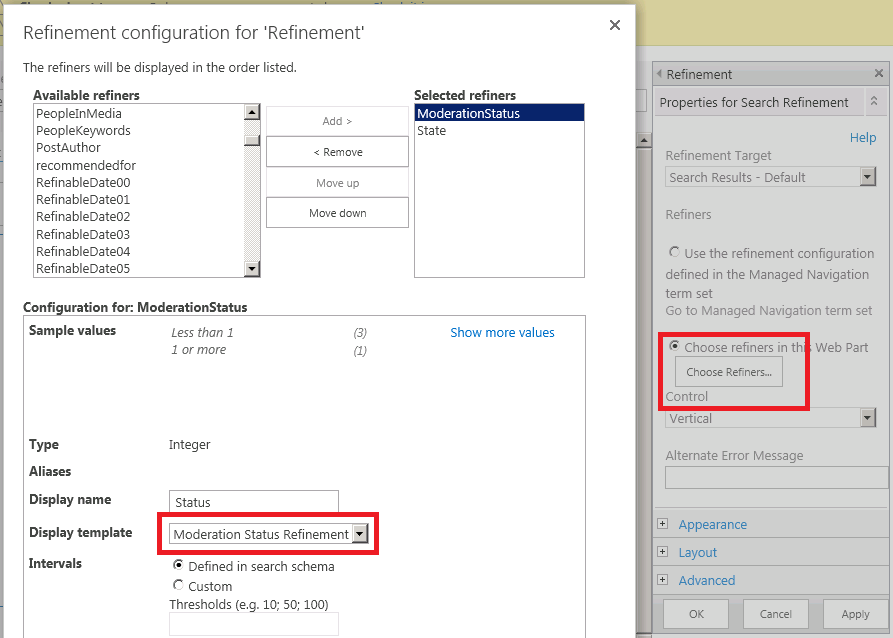
Edit your Refinement webpart, and hit Choose Refiners.  Add the ModerationStatus managed property as a refiner, and change its Display Template.  Note that this was the title we set in the HTML.


Hit OK and save the page.  If you see a drop down in the refiners panel, we're in business.  Sort of.  Of course, it doesn't do anything yet...

Adding Refinement

To make the refiner, you know... refine stuff, we have to update the active refiners when the dropdown value changes.  This is done through javascript by invoking methods on the refiner control.

First, wire up the dropdown box's onchange event.  We will create an applyRefiner(val, refinerCtrl) method to apply the selected refiner.  The javascript code for this method needs to go into an external JS file.

Note: this file can not have the same name as the display template.  That is reserved for the SharePoint generated JS file.  I named the example Filter_ModerationStatus_functions.js.

Add a script block beneath the body to reference this external file.

<html xmlns:mso="urn:schemas-microsoft-com:office:office"
      xmlns:msdt="uuid:C2F41010-65B3-11d1-A29F-00AA00C14882">
<head>
<title>Moderation Status Refinement</title>

<!--[if gte mso 9]><xml>
<mso:CustomDocumentProperties>
<mso:CompatibleManagedProperties msdt:dt="string"></mso:CompatibleManagedProperties>
<mso:TemplateHidden msdt:dt="string">0</mso:TemplateHidden>
<mso:CompatibleSearchDataTypes msdt:dt="string"></mso:CompatibleSearchDataTypes>
<mso:MasterPageDescription msdt:dt="string"></mso:MasterPageDescription>
<mso:ContentTypeId msdt:dt="string">0x0101002039C03B61C64EC4A04F5361F385106604</mso:ContentTypeId>
<mso:TargetControlType msdt:dt="string">;#Refinement;#</mso:TargetControlType>
<mso:HtmlDesignAssociated msdt:dt="string">1</mso:HtmlDesignAssociated>
</mso:CustomDocumentProperties></xml><![endif]-->
</head>
<body>
   <script>
      $includeScript(this.url, "~sitecollection/_catalogs/masterpage/display templates/filters/filter_moderationstatus_functions.js");
   </script>

   <div id="ModerationStatusRefinement">
     <div id="Container">
       <select id="statusDdl"
             onchange="javascript:applyRefiner(this.value, $getClientControl(this));">
         <option value="0">ALL</option>
         <option value="1">Active</option>
         <option value="2">Inactive</option>
       </select>
     </div>
   </div> 
</body>
</html>

Create Filter_ModerationStatus_functions.js, and add the code below.  Recall that val is the option value that's just been selected.

First, we clear any active ModerationStatus refiners by setting it to NULL.  Then, for Active, add a refinement for ModerationStatus = 0, which stands for Approved.  Inactive actually corresponds to a set of ModerationStatuses, so we use addRefinementFiltersWithOp with an OR operation to tell SharePoint to match on any of the statuses in the array.

function applyRefiner(val, refinementCtrl) {
   // Clear refiners
   refinementCtrl.updateRefiners( { 'ModerationStatus' : null } );

   if (val == 1) // Active --> Approved
      refinementCtrl.addRefinementFilter('ModerationStatus', '0');
   else if (val == 2) // Inactive --> Rejected, Pending, Draft, Scheduled
      refinementCtrl.addRefinementFiltersWithOp(
          { 'ModerationStatus' : ['1','2','3','4'] },
          'or'
      );
}

There's scant documentation on MSDN (and by scant I mean none) for the refiner control, but check out Elio Struyf's blog post for other refinement methods and more examples.

Upload both the HTML and JS files, and reload the search result page.  Now, when you change the dropdown, the search results should be getting refined!

Finishing Touches

You probably noticed the Status selection doesn't stay selected and gets reset (though the search results are being refined).  This is because we didn't take into account which option is already selected when rendering the dropdown.

To fix this, we have to add some javascript to the display template.  This is different from the javascript in the external file.  Javascript inside the display template controls what gets rendered.  The script itself is not emitted on to the page.  Therefore, javascript that's invoked by the controls on the page must live in an external file.

Within the template, all javascript statements must be enclosed in special tags: <!--#_   _#-->.  Javascript variables can also be emitted on to the page when wrapped in these tags: _#=   =#_.

We'll make a simple method to render the dropdown option based on it's selected state:

function addRefiner(val, text, selected) {
   if (selected) {
      <option selected="selected" value="val">text</option>
   } else {
      <option value="val">text</option>
   }
}

The javascript lines and variables must be wrapped before being added to the template:

<!--#_
   function addRefiner(val, text, selected) {
      if (selected) {
_#-->
         <option selected="selected" value="_#= val =#_">_#= text =#_</option>
<!--#_
      } else {
_#-->
         <option value="_#= val =#_">_#= text =#_</option>
<!--#_
      }
   }
_#-->

Finally, we replace the hard-coded options in the dropdown with calls to addRefiner.  For each option, we ask the refinement control if the corresponding filters are active by calling hasAllRefinementFilters.

For completion, we can also add a title at the top.

<html xmlns:mso="urn:schemas-microsoft-com:office:office"
      xmlns:msdt="uuid:C2F41010-65B3-11d1-A29F-00AA00C14882">
<head>
<title>Moderation Status Refinement</title>

<!--[if gte mso 9]><xml>
<mso:CustomDocumentProperties>
<mso:CompatibleManagedProperties msdt:dt="string"></mso:CompatibleManagedProperties>
<mso:TemplateHidden msdt:dt="string">0</mso:TemplateHidden>
<mso:CompatibleSearchDataTypes msdt:dt="string"></mso:CompatibleSearchDataTypes>
<mso:MasterPageDescription msdt:dt="string"></mso:MasterPageDescription>
<mso:ContentTypeId msdt:dt="string">0x0101002039C03B61C64EC4A04F5361F385106604</mso:ContentTypeId>
<mso:TargetControlType msdt:dt="string">;#Refinement;#</mso:TargetControlType>
<mso:HtmlDesignAssociated msdt:dt="string">1</mso:HtmlDesignAssociated>
</mso:CustomDocumentProperties></xml><![endif]-->
</head>
<body>

   <script>
      $includeScript(this.url, "~sitecollection/_catalogs/masterpage/display templates/filters/filter_moderationstatus_functions.js");
   </script>

   <div id="ModerationStatusRefinement">
       <div id="Container">
         <div style="font-size:13pt; margin-bottom: 10px">
            _#= Srch.Refinement.getRefinementTitle(ctx.RefinementControl) =#_
         </div>

         <select id="statusDdl"
               onchange="javascript:applyRefiner(this.value, $getClientControl(this));">
<!--#_
addRefiner(0, 'All', ctx.ClientControl.hasAllRefinementFilters('ModerationStatus', ['']));
addRefiner(1, 'Active', ctx.ClientControl.hasAllRefinementFilters('ModerationStatus', ['0']));
addRefiner(2, 'Inactive', ctx.ClientControl.hasAllRefinementFilters('ModerationStatus', ['1', '2','3','4']));
_#-->

          </select>
       </div>
<!--#_
   function addRefiner(val, text, selected) {
      if (selected) {
_#-->
         <option selected="selected" value="_#= val =#_">_#= text =#_</option>
<!--#_ 
      } else {
_#--> 
         <option value="_#= val =#_">_#= text =#_</option>
<!--#_
      }
   }
_#-->

   </div> 
</body>
</html>